Introduction
This guide explains how to create, manage, and use Sessions for Common Assessments in AssessPrep. Sessions allow districts and organizations to deliver standardized assessments across multiple schools while maintaining control over delivery settings and student access.
1. Authoring Assessments for Sessions
2. Using Assessments for Sessions
3. Creating and Managing Sessions
4. Student Access and Session Codes
5. Monitoring and Grading
1. Authoring Assessments for Sessions
For Question Bank (QB) Authors
As a QB Author, you are responsible for creating assessments that will be used across multiple organizations. Follow these steps to author session-enabled assessments:
| Step | Action |
| 1 | Navigate to the sessions-enabled question bank in your Library |
| 2 | Create your assessment within this designated bank |
| 3 | Configure default delivery settings (these will apply to all sessions by default) |
| 4 | Publish the assessment to make it available to organizations |
Tracking Usage
Once organizations begin using your assessments, you can monitor their usage directly from the assessment view. You will be able to see:
• Which schools are using sessions
• Number of submissions received per session
• Delivery settings configured by each organization
2. Using Assessments for Sessions
For Organizations
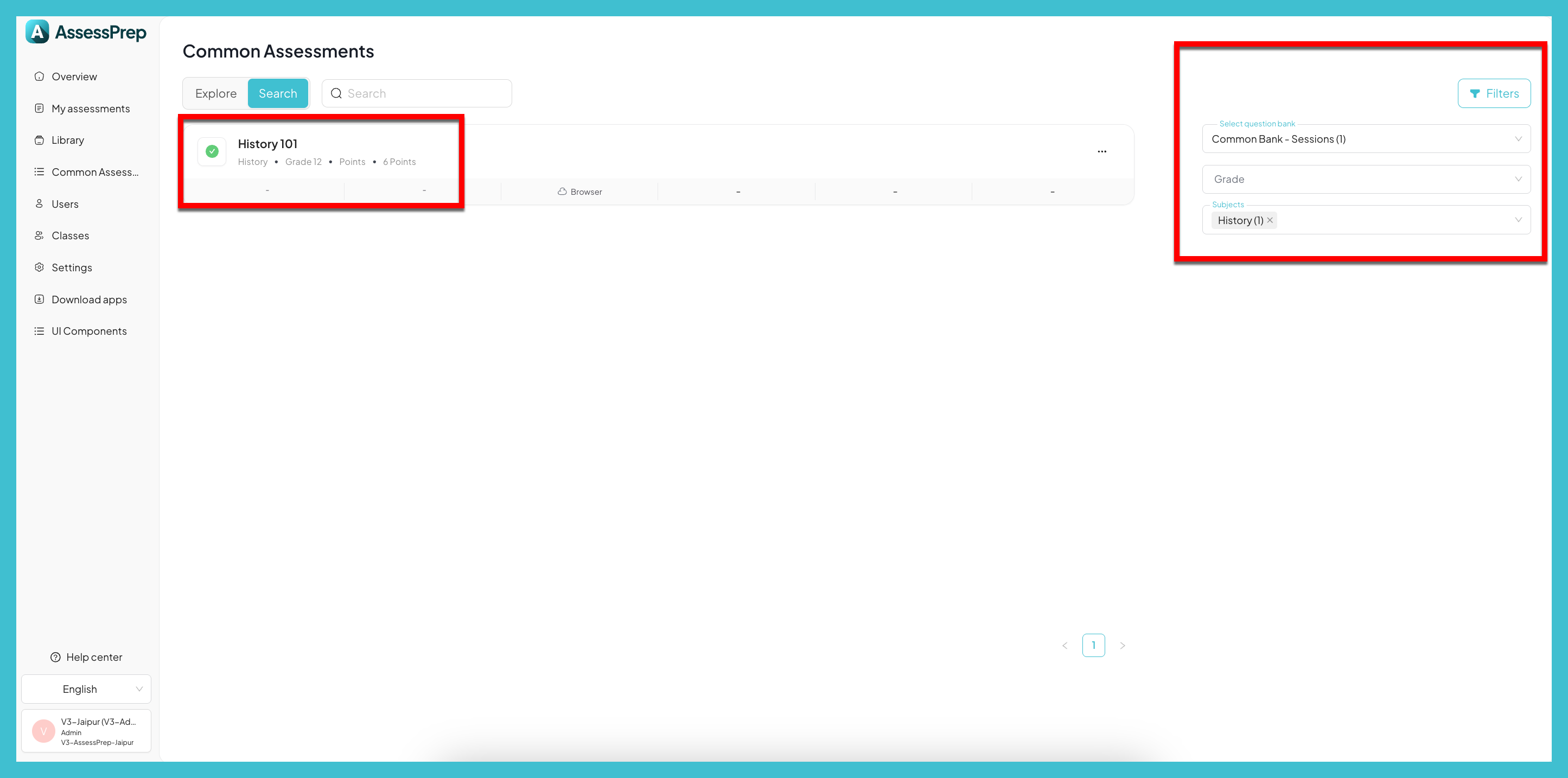
Organizations can access published common assessments through the Common Assessments tab in the navigation menu. Here's what you need to know:
Accessing Assessments:
• Click on the Common Assessments tab in the main navigation
• Browse available session-enabled banks
• Open any assessment to view its details
Important: Organizations cannot edit the assessment content. They can only create sessions, configure delivery settings, and assign students.
3. Creating and Managing Sessions
Creating a New Session
| Step | Description |
| 1 | Open the assessment from the Common Assessments section |
| 2 | Click 'Add Session' to create a new session |
| 3 | Configure delivery settings (timing, access controls, etc.) |
| 4 | Assign students by selecting classes or individual students |
| 5 | Optionally enable 'Allow guests' in Access Settings |
| 6 | Publish the session to make it visible to students |
Managing Existing Sessions
Each session can be managed independently. Available actions include:
| Action | Description |
| Edit | Modify session settings, student assignments, or delivery options |
| Duplicate | Create a copy of an existing session with its settings |
| Archive | Remove the session from active view while preserving data |
| View/Update Status | Publish or Draft a Session |
| Session Code | Code for students to enter the session |
4. Student Access and Session Codes
Students access session-enabled assessments using unique session codes. This ensures secure, controlled access to each specific session.
How Session Codes Work
- Each session is assigned a unique 4-digit code
- The code is displayed on the session management screen
- Organizations must share the appropriate code with their students
- Different sessions have different codes for security purposes
Student Login Process
| Step | Action |
| 1 | Student navigates to the assessment start screen |
| 2 | Student enters the 4-digit session code provided by their organization |
| 3 | Student clicks 'Verify Session Code' |
| 4 | Upon verification, student can begin the test |
5. Monitoring and Grading
Real-Time Monitoring
The Monitor view provides real-time oversight of student progress during assessments. Key features include:
• Filter the view by specific session to see only relevant students
• Track student status: Joined, In Progress, Ended, or Submitted
• Take session-specific actions such as pause, resume, or make announcements
• View real-time progress indicators for each student
Note: Actions taken in the Monitor view (pause, announcements, etc.) apply only to the currently selected session. Read Monitoring Students using the Live Invigilation Dashboard to understand more how Monitoring works.
Grading and Analysis
The Grade view allows organizations to review and score student submissions. Features include:
• Filter submissions by session to view only your organization's results
• Color-coded score ranges for quick identification (0-25, 25-50, 50-75, 75-100)
• Track submission status: Ungraded, Unattempted, or scored
• Access detailed analysis tools for performance insights
Note: Read here to understand more how How to grade an assessment of AssessPrep? and How to use the Analyse feature in AssessPrep